Windows 11 Gets 11 Changes in November, Led by Right-Click Menu
Microsoft is rolling out 11 notable Windows 11 changes in November. A customizable right-click menu and Cloud Rebuild, a way to reinstall Windows without a bootable USB drive, stand out. Others cover Xbox mode, Settings, Phone Link and Magnifier. Availability varies by device.
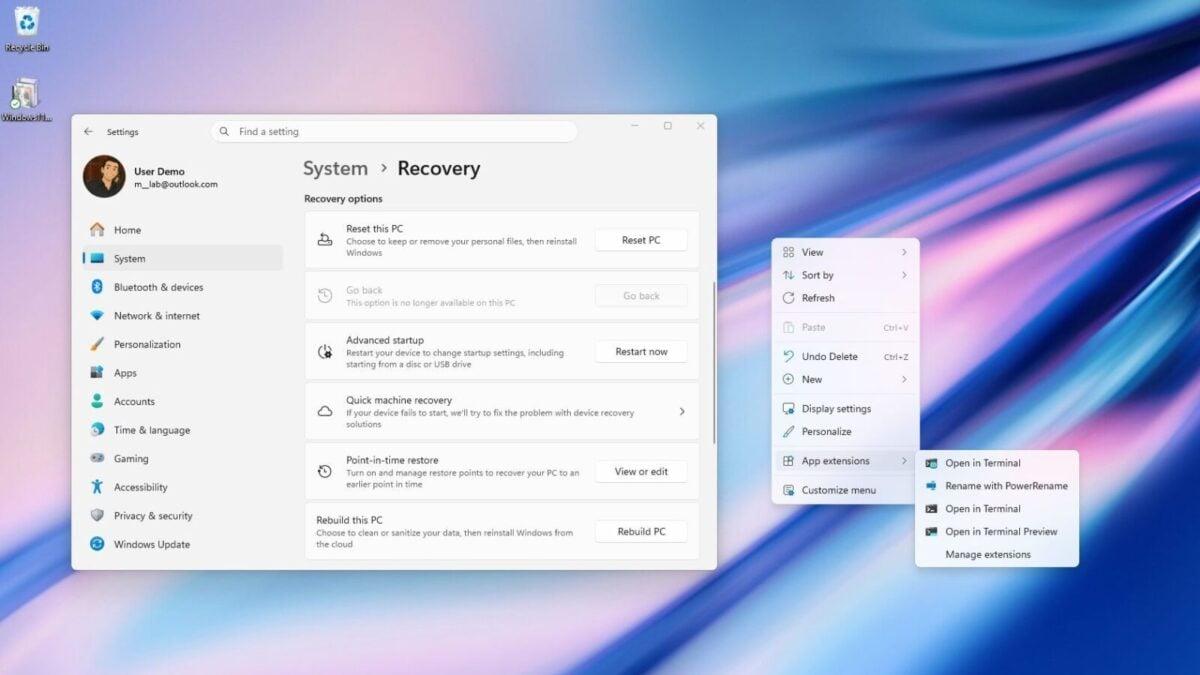
Windows 11 gets 11 notable changes in November, led by a customizable right-click menu and a reinstall option called Cloud Rebuild. The changes cover handheld gaming, Phone Link, accessibility, Edge performance and security.
Microsoft rolls many features out gradually, so availability will vary from one PC to the next.
A right-click menu you can edit
The November update brings a new context menu that gives users more control over the commands and app extensions in the main menu. App extensions move into a separate submenu, which reduces clutter and makes the menu faster.
A "Customize menu" option at the bottom opens a dedicated Settings page. There you can enable or disable built-in commands, add options such as "Print" and "Send to," and choose which app extensions appear in the main menu or the submenu.
You can also show "Cut," "Copy," "Paste," "Rename," "Delete" and "Share" as individual commands instead of a vertical view. "Properties" can move to the bottom of the menu, as it appeared on Windows 10.
To reach the options, right-click a file, folder or the desktop and select Customize menu. You can also open Settings > Personalization > Context menu.
Nothing is forced. You can keep the default configuration, and holding down "Shift" while right-clicking still reveals the legacy context menu.
Cloud Rebuild
Cloud Rebuild offers a much easier way to reinstall Windows without creating a bootable USB drive. Along with the new context menu, it is one of the two changes that stand out from the 11.
Smaller changes
Microsoft is refreshing the Gaming Task View experience in Xbox mode. The interface keeps its familiar design but adds a navigation bar, so options such as "Exit to Desktop" and "Power Options" are easier to reach with a game controller.
The Settings app gets several usability refinements. The "Privacy & security" page now groups Location, Microphone and Camera controls more clearly, which makes those permissions easier to review.
Microsoft is also expanding the "Device Info" card on the "Home" page to more markets. For users signed in with a Microsoft account, the card gives an overview of key hardware specifications and a shortcut to the "About" page. The "Storage" page also gets visual changes to its temporary files section.
Phone Link gets a small convenience upgrade. With a phone connected, you can hover over a recent message or notification in the "Recent" section of the Start menu's mobile pane to preview it without opening the phone or the Phone Link app.
Magnifier also gets much better for multi-monitor setups.