How to Secure a Home Wi-Fi Network: 7 Steps Cybersecurity Agencies Recommend
An unsecured home router can broadcast 150 to 300 feet indoors and expose personal data. Here are seven practical steps from CISA and the UK NCSC to lock it down.
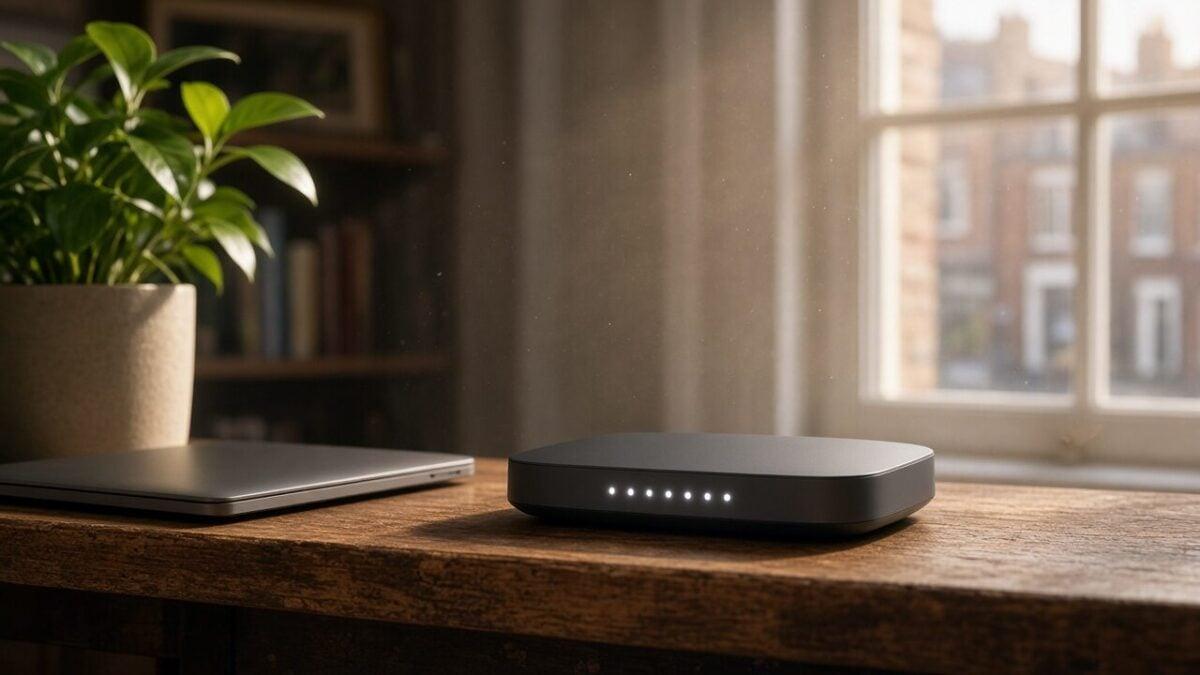
To secure a home Wi-Fi network, cybersecurity agencies advise replacing default router administrator passwords, turning on WPA3 encryption (or at least WPA2), changing the default network name (SSID), separating visitors onto a guest network, and keeping router firmware patched. According to the U.S. Cybersecurity and Infrastructure Security Agency (CISA), a typical indoor wireless router broadcasts 150 to 300 feet—and up to 1,000 feet outdoors—meaning neighbors or passersby can reach an unprotected signal.
The short version
- Change defaults first: Replace both the factory administrator password and the default router network name (SSID).
- Use WPA3 encryption: WPA3 is the strongest wireless encryption standard; avoid older WEP or unencrypted settings.
- Isolate guests and IoT devices: Put visitors on a separate guest network channel with its own password.
- Patch and protect accounts: Install router firmware updates, enable 2-step verification on email, and follow UK NCSC password guidance.
Why an unsecured home Wi-Fi network is a risk
Leaving a home router on factory settings allows anyone within signal range to piggyback on your internet connection, monitor unencrypted web traffic, or attempt to access shared folders on connected devices. In apartments and dense neighborhoods, overlapping broadcast ranges of 150 to 300 feet make open networks easy targets.
CISA also warns against "wardriving"—where people scan neighborhoods for unprotected access points—and "evil twin" attacks, in which an attacker broadcasts a stronger lookalike Wi-Fi name to intercept logins or payment details. Securing your home router and confirming trusted network names before connecting outside the house closes both gaps.
| Security Setting | Weak / Default State | Recommended Setting (CISA / NCSC) |
|---|---|---|
| Wireless encryption | Open, WEP, or legacy WPA | WPA3 (or WPA2 minimum on older hardware) |
| Router admin password | Manufacturer default password | Unique, complex passphrase |
| Network name (SSID) | Factory brand/model name | Custom name; hide broadcast if desired |
| Visitor access | Shared primary Wi-Fi password | Separate guest network with its own password |
| Router firmware | Outdated factory software | Patched to latest manufacturer release |
7 steps to lock down your home Wi-Fi network
Following seven configuration steps from CISA's wireless security guidance and the UK National Cyber Security Centre (NCSC) protects both your router and the laptops, phones, and smart devices connected to it.
- 1. Replace the default administrator password: Factory router logins are widely published online. Set a strong, unique passphrase for your router's admin panel—the NCSC recommends combining three random words for memorable, hard-to-crack passwords.
- 2. Switch encryption to WPA3: Open your router's wireless security settings and select WPA3, which CISA identifies as the strongest current protocol. If older devices cannot connect to WPA3, use WPA2 rather than leaving traffic unencrypted.
- 3. Rename your SSID: Leaving the manufacturer's default network name helps attackers identify your router model and known flaws. Choose a custom name that does not reveal your name, address, or hardware brand.
- 4. Set up a guest network: Most modern routers support a separate guest channel with its own password. Giving visitors guest access keeps your primary devices and local files isolated.
- 5. Update router firmware and device software: Manufacturers release patches to close security holes. Check your router's admin portal or ISP instructions regularly, and keep phones, laptops, and apps updated as the NCSC advises.
- 6. Turn off unnecessary file sharing: Disable open folder or hard-drive sharing unless actively needed on a trusted home network, and password-protect any shared directories.
- 7. Add firewalls, 2-step verification, and backups: Enable your router's built-in firewall alongside host-based firewalls and antivirus software on your devices, turn on 2-step verification for email and cloud accounts, and back up key files to an external drive or cloud storage.
What to do on public Wi-Fi outside your home
Even a locked-down home network does not protect you when you connect at a café, hotel, or airport. Before joining a public hotspot, verify the exact network name and password with staff to avoid evil twin traps, keep file sharing turned off, and avoid accessing sensitive banking accounts unless your connection is encrypted.
 Take the quizWhat Kind of Holiday Spender Are You? Take the Black Friday QuizStart →





 Lifestyle5 Subtle Signs You Still Feel Lonely Even in a Crowded Room
 Markets · FintechHow to Calculate Compound Interest: Formula, Examples and the Rule of 72
 Lifestyle · Food & HealthNormal Blood Pressure Chart by Age: Healthy Ranges Explained
 Lifestyle · Food & HealthWhat Is Raynaud’s Syndrome? Why Fingers Turn White in the Cold